

Before we jump into the steps, let’s quickly clear something up. Pinterest is not a social media platform. It is a visual search engine. People use Pinterest to search for ideas, products, tutorials, and inspiration. That means everything on Pinterest — including your pins and boards — is organized and ranked based on relevance and keywords.
If you’re trying to figure out how to delete pins from Pinterest group boards, it’s important to understand how boards and permissions work first. Let’s walk through it clearly and simply.
What Are Pinterest Boards?
Pinterest boards are folders where you save and organize your pins.
They help you categorize content by topic so both you and Pinterest understand what your content is about. For example, you might have boards for recipes, blogging tips, home decor, or fashion inspiration.
Boards make your profile organized and easier to navigate. They also help with Pinterest SEO because Pinterest reads your board titles and descriptions to understand your niche.
When your boards are clear and focused, your content performs better.
What Are Group Boards?
Group boards are collaborative boards where multiple contributors can add pins.
Unlike personal boards that only you control, group boards are owned by one person who can invite others to contribute. All contributors can add pins, but permissions vary depending on what the board owner allows.
Some collaborators can only add pins. Others may have permission to edit or remove pins. The level of control depends entirely on the owner’s settings.
Understanding this is important when learning how to delete pins from group boards on Pinterest.
You may also like to read:
How to delete pins on Pinterest?
How to delete Multiple Pinterest pins?
How to delete a Pinterest account?
How to delete boards on Pinterest?
How to Delete Pins on Pinterest Group Boards
If you’re looking for how to delete pins from Pinterest group boards, here’s the most important thing to know:
You cannot delete other people’s pins if you are not the board owner.
You can only remove your own pins from a group board unless you are:
• The board owner
• A collaborator with editing permissions
If you are just a contributor without editing rights, you will only be able to remove pins that you personally added.
Now let’s go step by step.
How to Delete Pins on Pinterest Group Boards on Desktop
If you’re using Pinterest on a computer, follow these steps:
Log in to your Pinterest account.
Go to your profile and click on the group board.
Find the pin you want to delete.
Click on the pin to open it.
Click the three dots (•••) on the top right of the pin.
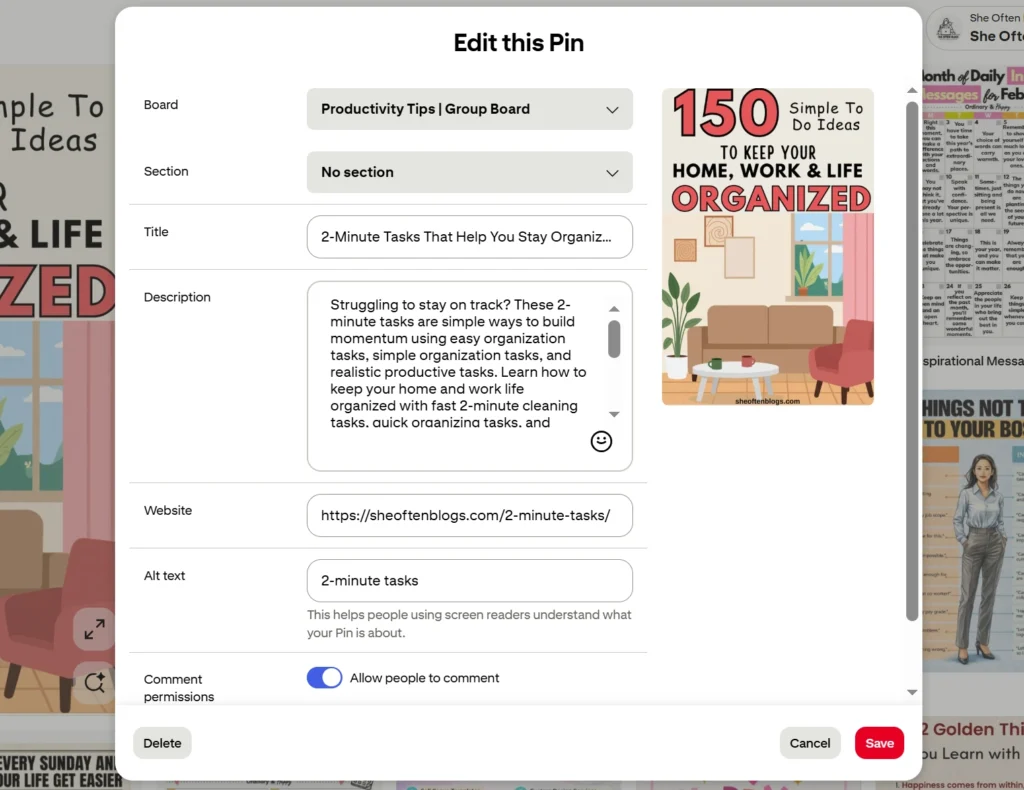
Select “Edit Pin” if available.
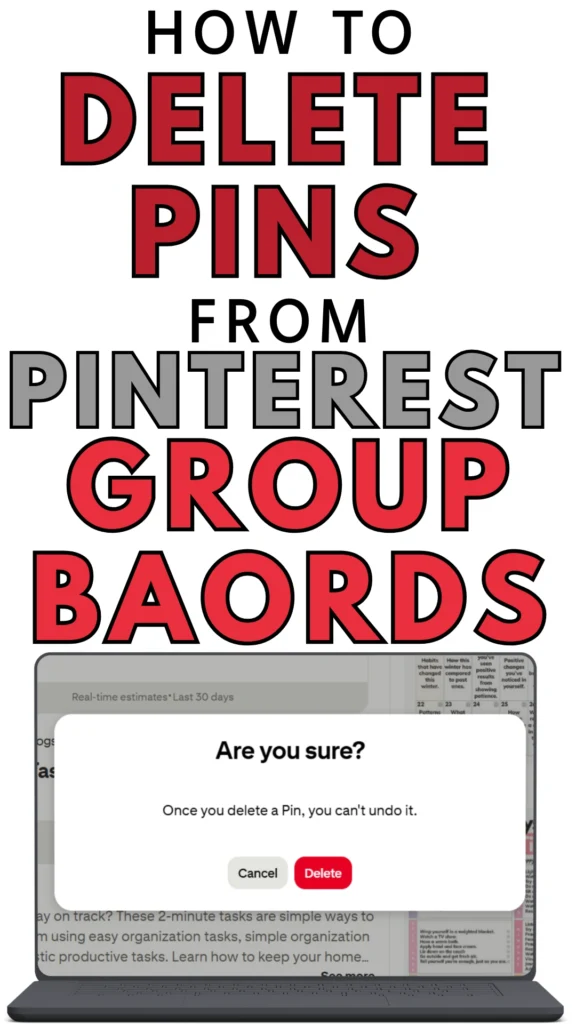
Click “Delete” at the bottom of the edit window.
Confirm delete.
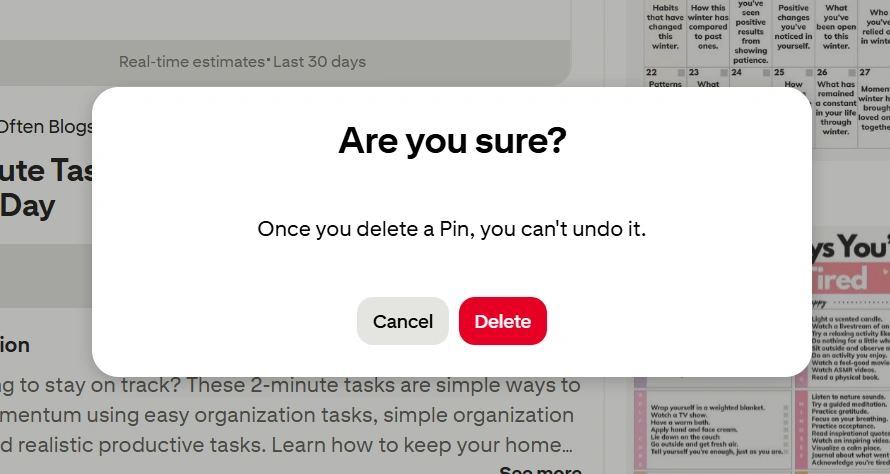
If you do not see the delete option, it means you do not have permission to remove that pin.
If you only want to remove your own pin from the group board (and not delete it entirely), Pinterest may allow you to “Remove from board” instead, depending on your role.
How to Delete Pins on Pinterest Group Boards on Mobile
If you’re using the Pinterest app, here’s how to delete pins from group boards on Pinterest:
Open the Pinterest app and log in.
Go to your profile and tap the group board.
Tap on the pin you want to delete.
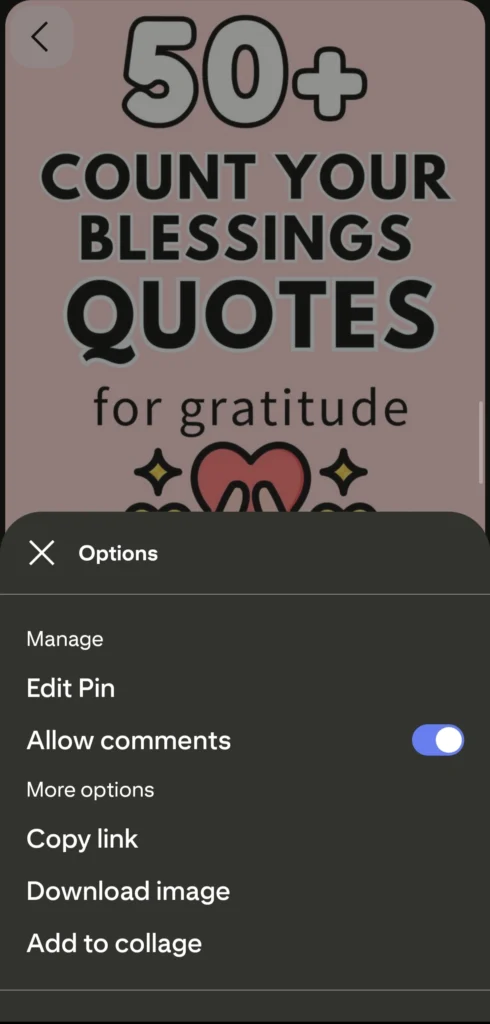
Tap the three dots in the bottom right corner.

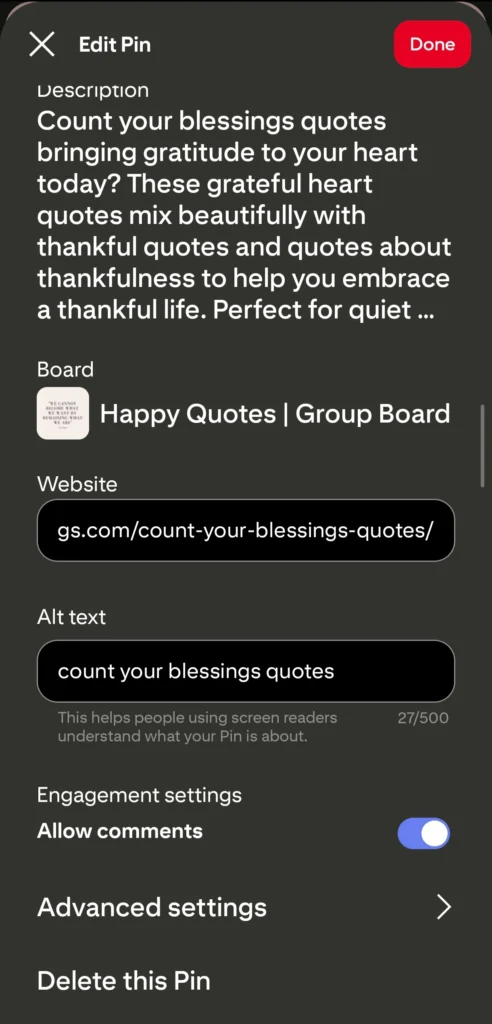
Select “Edit Pin.”
Tap “Delete this pin” at the bottom.
Tap ” Delete” to confirm.
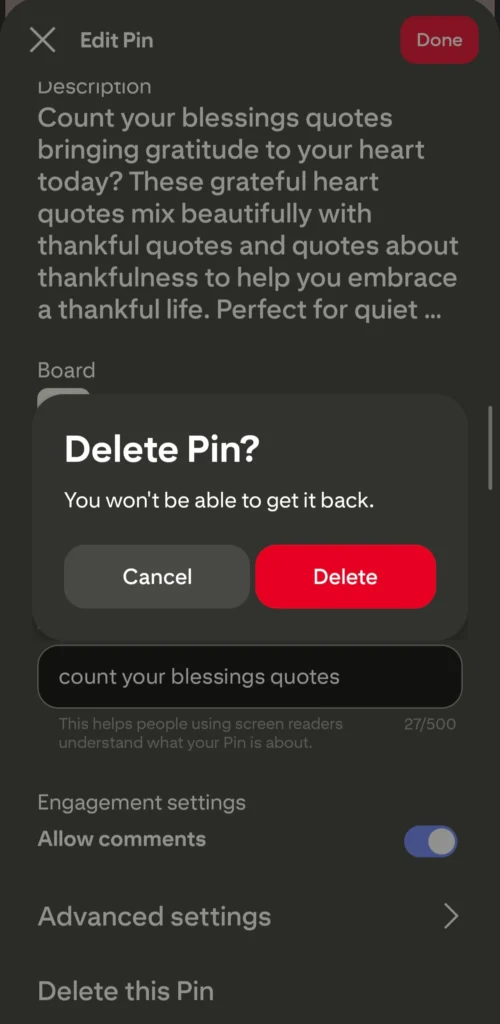
Again, if you don’t see the delete option, you likely don’t have permission to remove that pin.
You can only delete your own pins unless you are the board owner or have been granted editing access.
Conclusion
Learning how to delete pins from group boards doesn’t have to be confusing once you understand how permissions work.
Remember, Pinterest is a visual search engine, and everything is structured around ownership and relevance. You can delete your own pins from group boards, but you cannot delete other contributors’ pins unless you are the owner or have editing rights.
If you’re managing group boards, stay organized and regularly review content to keep it aligned with your niche. And if you’re just a contributor, be mindful of what you pin because you may not always have full control later.
Now that you know how to delete pins from Pinterest group boards, you can manage your boards with confidence and keep your profile clean, relevant, and professional.
If you found this post helpful, don’t forget to pin it and share it with your friends.
Related posts:
How to delete pins on Pinterest?
How to delete multiple Pinterest pins?
How to delete your Pinterest account?
How to delete boards on Pinterest?
How to find Pinterest group boards.


I am a passionate blogger who loves sharing insights on blogging tips, Pinterest strategies, and making money online. With a knack for simplifying complex concepts, I help readers grow their online presence and achieve their Pinterest marketing goals. Follow along for practical advice and proven tactics to elevate your blog, Pinterest and online business.