

Have you ever pinned something personal on Pinterest—like a dream home, a surprise gift idea, or your vision board—and suddenly realized it’s visible to everyone?
It’s not the best feeling when your private inspirations are out in the open. By default, Pinterest boards are public, which means anyone can see what you’ve been saving.
We all need a little privacy sometimes. Maybe you’re collecting business ideas, curating personal fashion looks, or saving quotes that speak to your heart. Having others peek into those intimate collections can feel uncomfortable.
And if you’re planning something special—like a secret event, rebrand, or wedding—privacy becomes even more important.
The good news is that Pinterest allows you to make any board private with just a few clicks!
Once you know how to make a board private on Pinterest, you can enjoy pinning without worrying about who’s looking.
In this post, I’ll walk you through exactly how to do it on both desktop and mobile, explain why it’s beneficial, and share how to make your Pinterest experience more personal and peaceful.
You may also like to read:
How to organize Pinterest boards?
How to delete Pinterest boards?
How to merge Boards on Pinterest?
How to remove your boards on Pinterest?
Why It’s Important to Make a Board Private
Knowing how to make your Pinterest board private gives you control over your creative space. Privacy on Pinterest isn’t just about hiding—it’s about creating without pressure.
Private boards are wonderful for so many reasons:
- Personal projects: Keep your home décor or lifestyle ideas to yourself until you’re ready to reveal them.
- Event planning: Surprise parties, weddings, and gifts are much easier to plan when only you can see the details.
- Work and business ideas: Save inspiration for branding, marketing, or new projects privately.
- Creative freedom: Experiment, test, and refine your ideas without worrying about what others might think.
Once you learn how to make a Pinterest board private, you’ll love the freedom it brings. It’s your own little corner of creativity—safe, calm, and just for you.
How to Make a Board Private on Pinterest
It only takes a minute to make your board private. Here’s a simple guide to help you do it, whether you’re using Pinterest on your computer or mobile app.
How to Make a Pinterest Group Private on Desktop
If you’re using Pinterest on your desktop or laptop, here’s how to make a board private on Pinterest in a few easy steps:
Open Pinterest and log into your account.
Click on your profile picture at the top-right corner to go your homepage.
Click on “saved”, to see all of your Pinterest boards.
Select the board you want to make private.
Click the three dots (•••) in the upper-right corner of the board.

Choose Edit Board from the dropdown menu.
Find the option that says “Keep this board secret” and toggle it on.
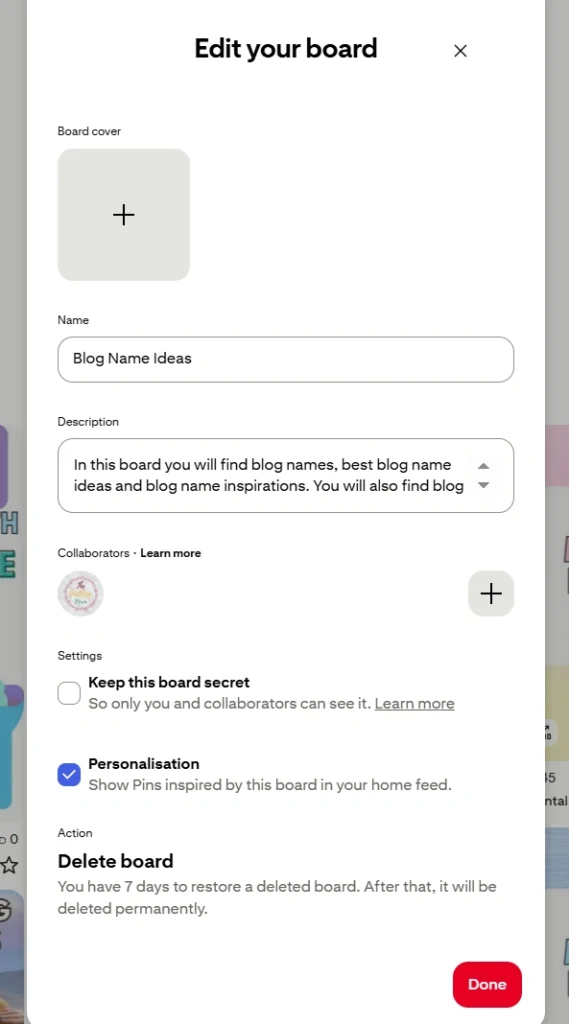
Click Done to save your settings.
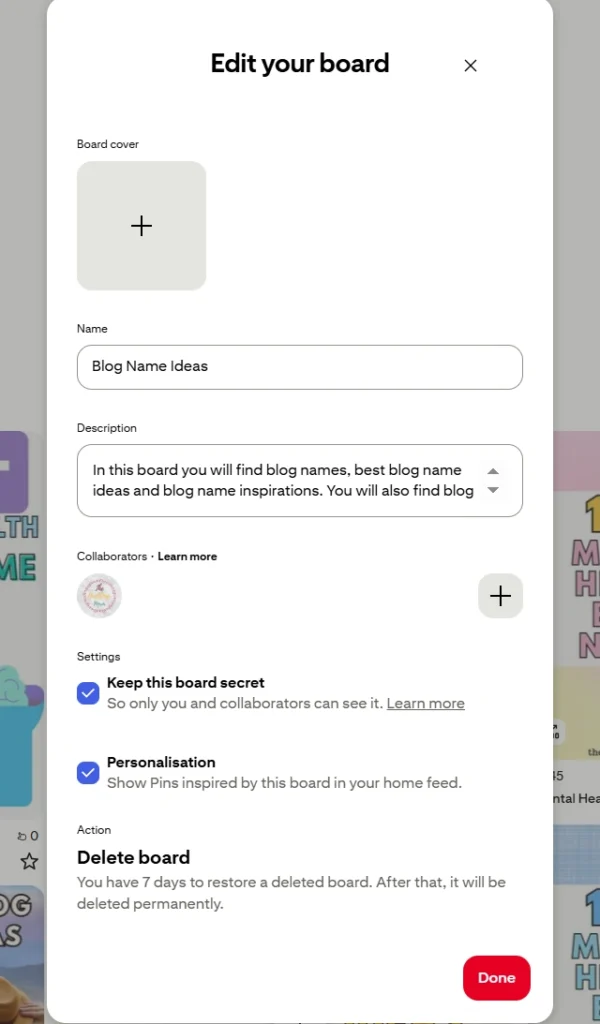
Now your Pinterest group board is private. Only you—and any collaborators you’ve invited—can view or add pins to it. This makes it perfect for team projects, private collaborations, or hidden inspiration boards.
How to Make a Pinterest Board Private on Mobile
If you use Pinterest mostly on your phone, here’s how to make your Pinterest board private through the app:
Open the Pinterest app and tap your profile at the bottom.
Click on “Saved”, to see all teh boards you have.
Find and select the board you want to make private.
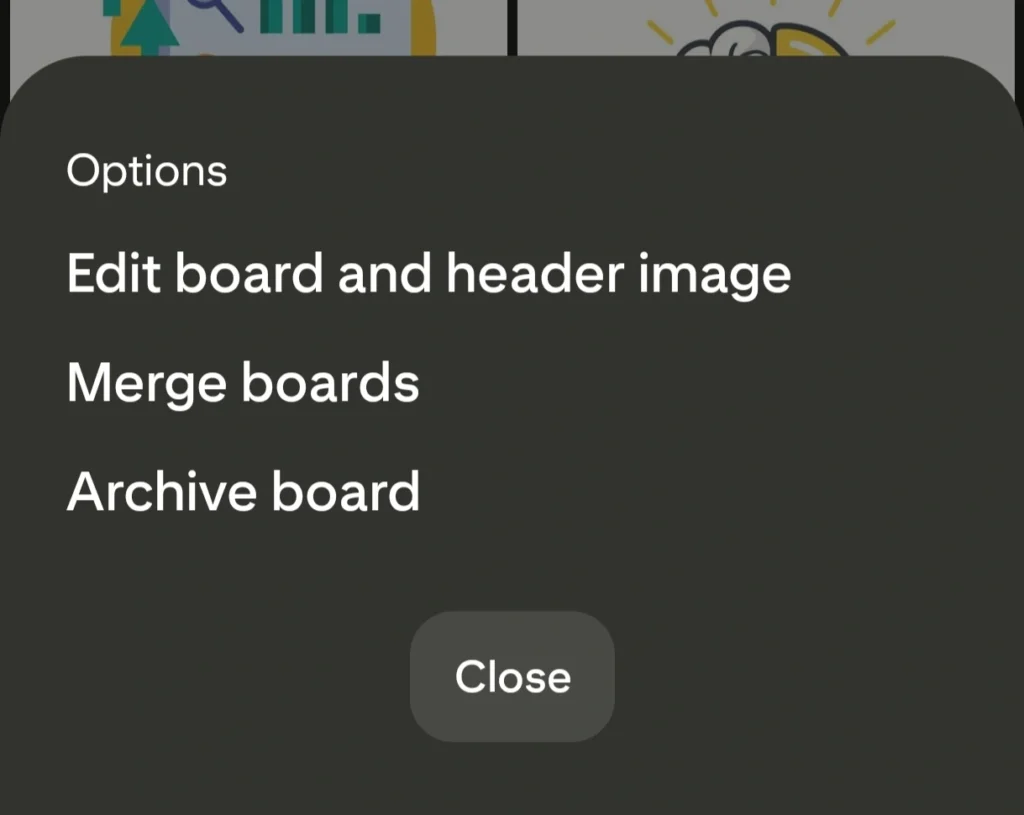
Tap the three dots in the top-right corner of the screen.
Select Edit Board from the options.
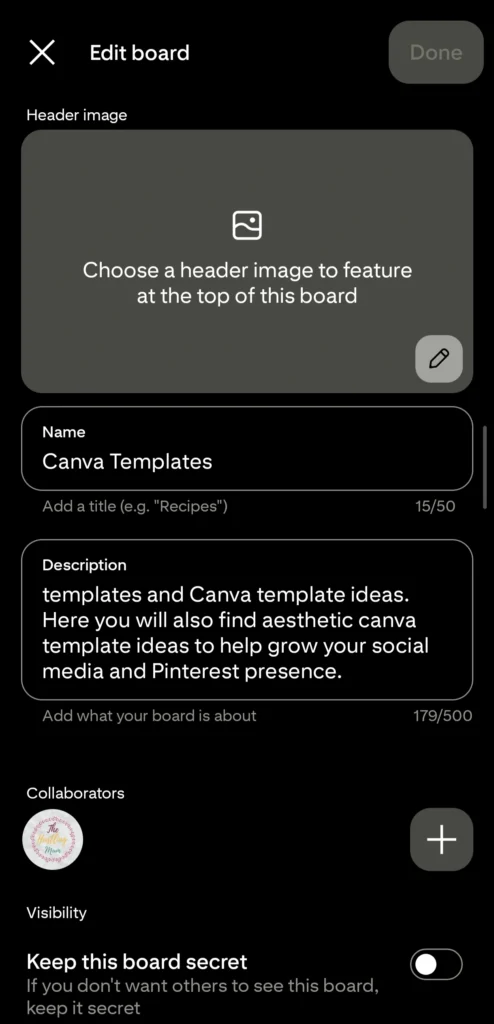
Scroll until you see Keep this board secret and toggle it on.
Tap Done to confirm your changes.
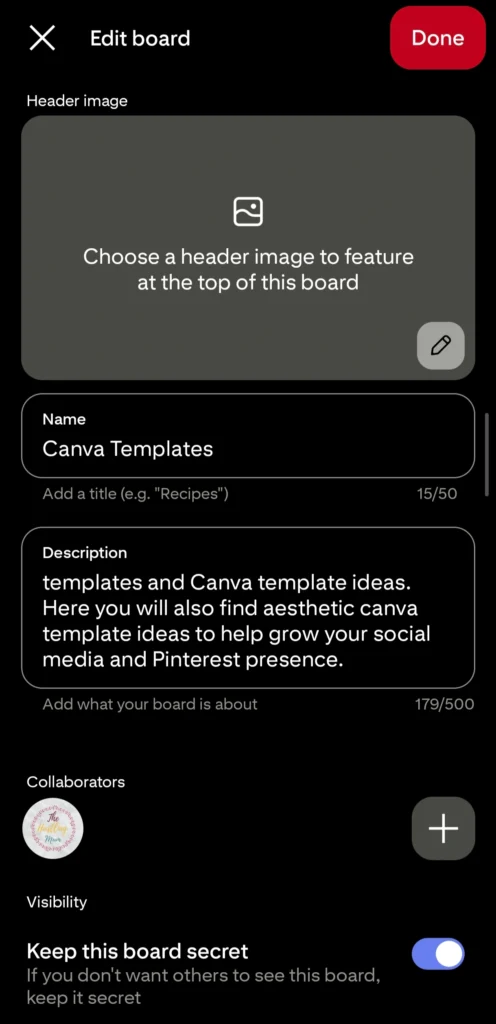
That’s it! Your private Pinterest board is now hidden from everyone except you. You can still add pins, edit it, or invite someone you trust to collaborate.
How to Create a Private Pinterest Board
If you want to create a new Pinterest board and want to keep it private, then you can do this with a simple option.
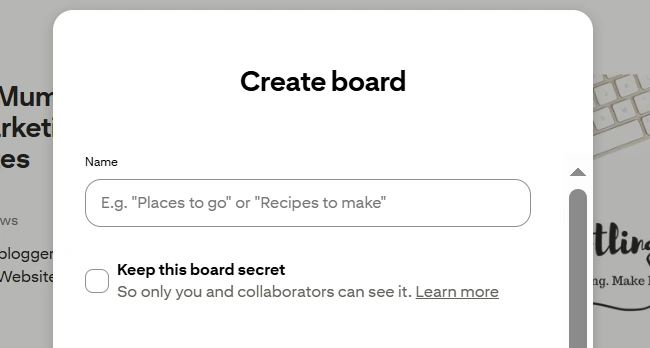
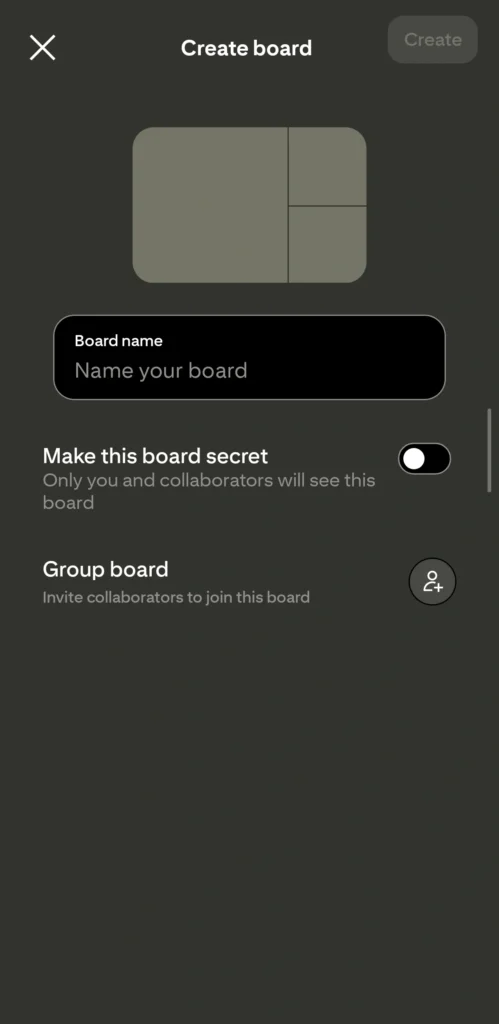
When you click the option to create a board, a new window opens. Just toggle the option to “keep it secret” and you are done.
This can be done on phone and desktop.
Final Word
And there you have it—you now know how to make a board private on Pinterest.
Whether it’s a secret project, a dream collection, or simply something you’re not ready to share, keeping your boards private gives you peace of mind.
Pinterest is your creative playground, and you deserve to pin freely without the pressure of public eyes. So go ahead—make that private board, fill it with all your Pinterest board private ideas, and enjoy your own little world of inspiration.
Pin this post and share it with your friends.
Related Posts:
How to delete Pinterest boards?
How to organize Pinterest boards?
How to merge Boards on Pinterest?
How to remove your boards on Pinterest?

I am a passionate blogger who loves sharing insights on blogging tips, Pinterest strategies, and making money online. With a knack for simplifying complex concepts, I help readers grow their online presence and achieve their Pinterest marketing goals. Follow along for practical advice and proven tactics to elevate your blog, Pinterest and online business.