

Are you wondering how to delete pins on Pinterest? Don’t worry—you’re in the right place. In this post, I’ll walk you through a simple, step-by-step guide on how to delete Pinterest pins in just a few minutes.
Pinterest isn’t just another social media platform—it’s a visual search engine where people discover, save, and organize ideas using pins and boards. As a result, many bloggers and businesses utilize Pinterest to generate substantial traffic to their websites and blogs.
Honestly, I like to think of Pinterest as a goldmine for free traffic.

That said, there are times when you may want to remove a pin. Maybe it’s outdated, no longer relevant, or was posted by mistake. Whatever the reason, knowing how to delete a pin on Pinterest is essential.
This complete guide will show you exactly how to do it. Whether you’re a Pinterest beginner or an experienced pinner, you’ll find this tutorial easy to follow and super helpful.

You may also like to read:
How to delete Pinterest Account.
How to delete sections on Pinterest.
How to delete boards on Pinterest.
How to delete Pinterest search history.
How to hide a pin on the Pinterest home feed.
How to delete Pinterest messages.
How to delete Multiple pins on Pinterest.
How to find a saved pin on Pinterest.

How to Delete Pinterest Pins
Here is how you can delete unwanted Pinterest pins easily.
How to Delete Pins on Pinterest on a PC
Here we will see how to delete pins on Pinterest using a PC or desktop.
1. Log in to your Pinterest account
The first step is to log in to your Pinterest account on a Pc or desktop.
2. Go to your profile
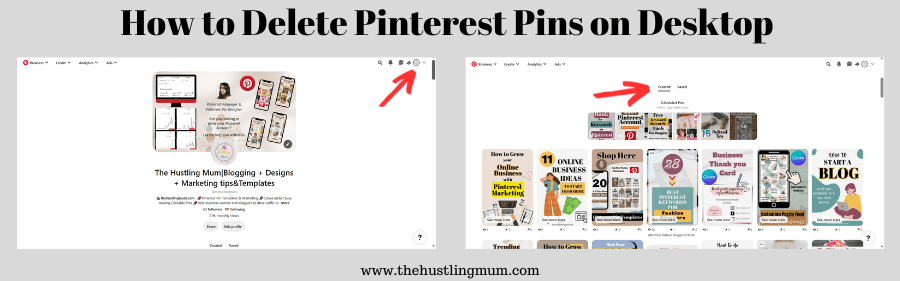
Click on your profile image in the top right corner to go to your profile.
3. Select Created
Then you need to select created. This will show you all the Pinterest pins that you have created.
4. Hover Over the Pin
The next step is to hover on the pin that you want to delete.
5. Click the Edit Icon
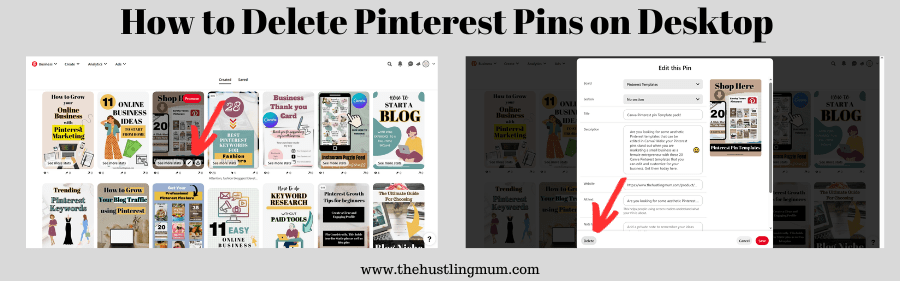
Once you hover over the pin that you want to delete then you will be able to see a pencil icon which is used to edit the pin. Click on that pencil icon.
6. Click Delete
An edit menu will open. Down in the left corner you will see the option to delete. Click on delete.
7. Confirm Delete
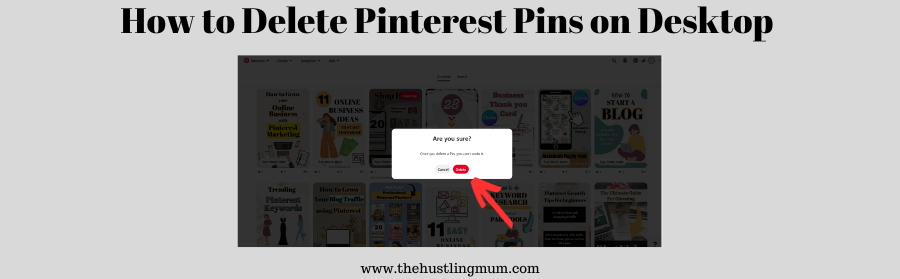
Then Pinterest will ask you to confirm if you want to delete it. Click on delete if you surely want to delete your pin.
Using these steps, you can unsave pins on Pinterest on a PC.
Related posts:
How to fix Pinterest validation error.
How to search by image on Pinterest.
How to reactivate suspended Pinterest account?
How to add and edit Pinterest comments.
How to delete comments on Pinterest.
How to remove boards on Pinterest.

How to Delete Pins on Pinterest on a Mobile
If you want to know how to delete pins on Pinterest on a mobile device, follow the following steps. The steps are the same whether you use Apple or Android device.
1. Log in to your Pinterest Account:
The first step is to log in to your Pinterest account on your mobile device.
2. Go to your Profile:
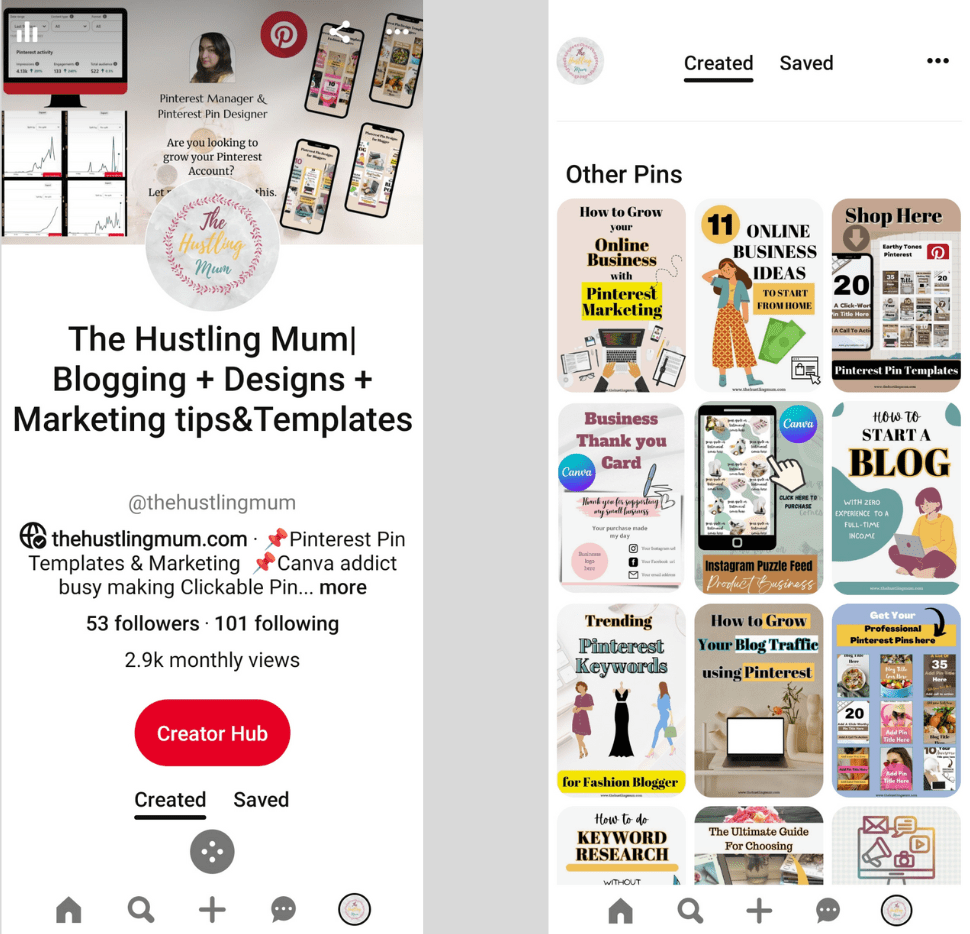
Then click on your profile picture on the bottom right to go to your Pinterest profile.
3. Select Created:
Next, you have to select created. This will show you all the Pinterest pins that you have created.
4. Click the Pin:
Then the next step is to click on the pin that you want to delete or unsave.
5. Click on the Three Dots:
Once you click on the pin it will open, and you will see three dots on the top right corner. Click on these three dots.
6. Select Edit Pin:
A menu will open, select edit pin from this menu.
7. Click Delete:
A new page will open where you can edit your pin. On this page on the bottom left corner, you will see the option to delete this pin. Click on it.
8. Confirm Delete:
Next Pinterest will ask you to confirm if want to delete this pin. Click on delete if you are sure to delete the pin.
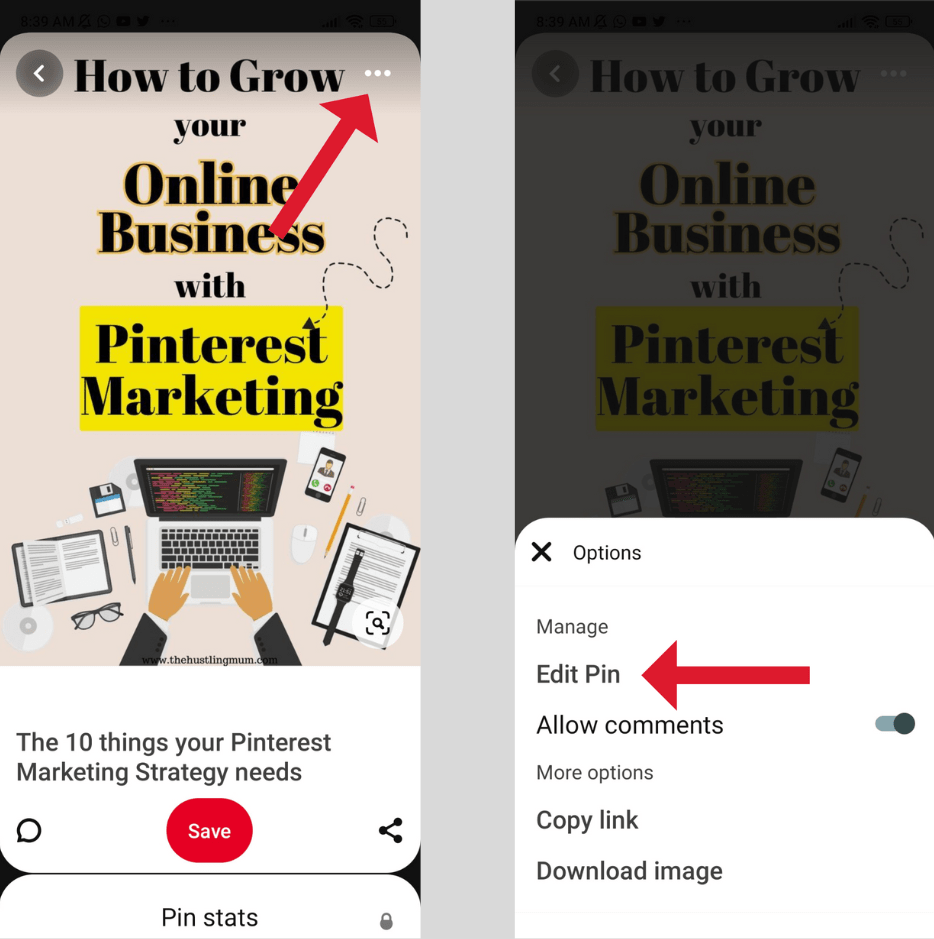
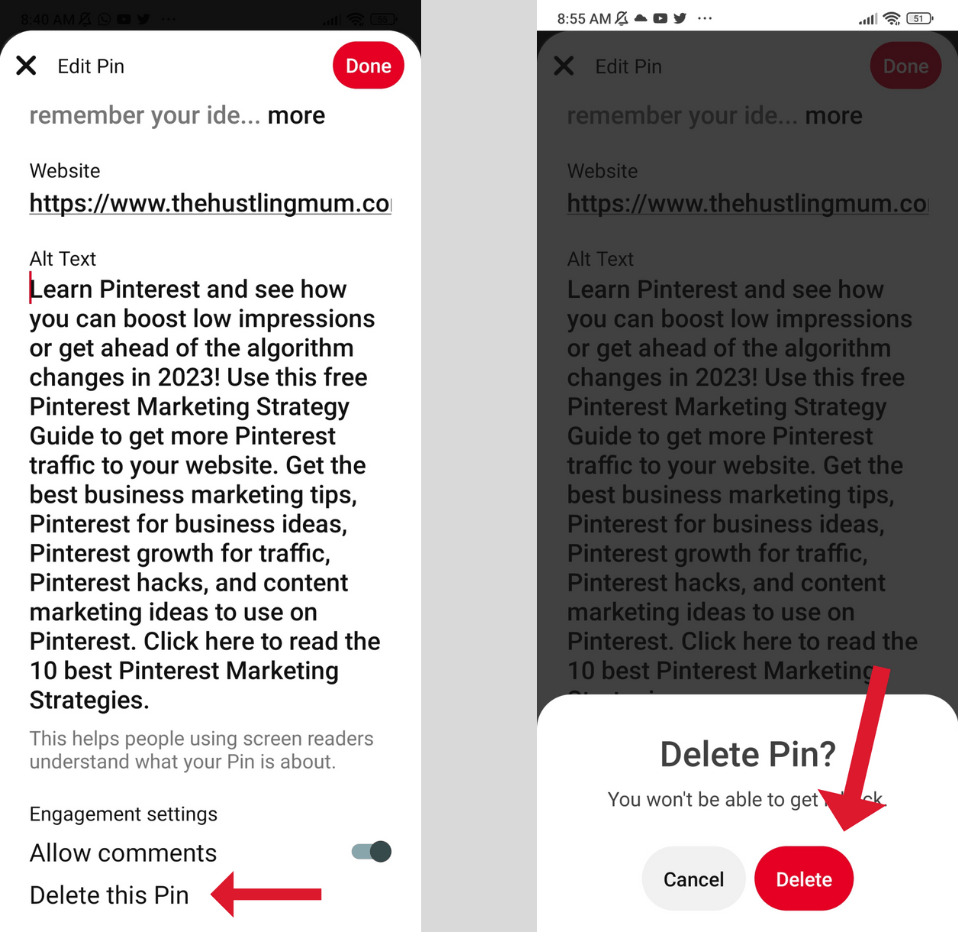
This way you will be able to delete pins on Pinterest using a mobile device.
Final Word
Deleting pins on Pinterest is quick and easy once you know where to look.
Whether you’re cleaning up old content, removing outdated links, or simply organizing your boards better, knowing how to delete a Pinterest pin helps keep your profile neat and relevant.
Pinterest works best when your boards reflect your current ideas and goals, so don’t be afraid to make changes when needed. With the simple steps shared in this guide, you can confidently manage your pins and keep your Pinterest account looking fresh and well-organized.

Related posts:
Should you delete Pinterest pins.
How to change Pinterest board covers?
How to delete comments on Pinterest.
How to delete duplicate pins on Pinterest?
How to delete all pins on Pinterest?
How to delete pins in bulk on Pinterest?
How to delete Pins from group boards?

I am a passionate blogger who loves sharing insights on blogging tips, Pinterest strategies, and making money online. With a knack for simplifying complex concepts, I help readers grow their online presence and achieve their Pinterest marketing goals. Follow along for practical advice and proven tactics to elevate your blog, Pinterest and online business.